Exporting from TATOR
Exporting clips for general usage
Users are able to export clips for general usage outside of TATOR. In order to download clips, you can use the following instructions.
- Begin by right clicking on the video seek bar at the starting point of the clip.
- Repeat at the ending point of the clip to create two segment markers.
- Right click on the yellow bar that appears in the selected time region, and click “Generate clip”.
- Select which feed you prefer (SCICAM/SITCAM) and wait for your clip to be generated. This step may take a while, but you can view progress based on the video preview.
If you misplaced the clip markers, you can either (1) drag the market to the correct position, or (2) right-click on the selected time region and click “Reset” to begin again. If these steps are confusing, click on the Scissors button on the left toolbar to watch an instructional video.
Once your clip is generated, click to download.
Once you’ve downloaded the video file, you’re free to use the clip. Included in the folder is a License file detailing the Creative Commons license and an Attribution file. Learn more about licensing here. The attribution file contains information about citing your usage, along with key metadata about the video file. Learn more about citations here.
Exporting to data to other formats (Fathomnet, COCO, etc.)
When exporting data in Tator, the key concept is staging metadata and media which must be done prior to the export. Once staged the data can be exported to the requested format.
To stage a dataset for export, you can either stage as you draw boxes in the annotation view, or bulk stage a series of boxes to a dataset. The export capability supports automatically converting dots or lines to boxes as part of the staging process.
Interactive staging tool
Interactive staging can be used to stage a localization, one-by-one, to a dataset. To do this you’ll use the Dataset Staging tool in the Annotator experience.
Steps:
1.) Activate the tool by clicking the stage button.

2.) Select a set to export to, or create a new set within the dialog.
3.) You may alter the Concept at this stage, but this is automatically fetched from Scientific Name of the element.
4.) The Alt Concept, Occlusion, and Group information may filled in.
4.) Confirm the sensor data is associated by looking at the read only fields.
5.) Click ‘Stage’ to generate the persistent media resources for the export process. This launches an asynchronous process.
Bulk staging capabilities
If you already have validated box-data, across many boxes, it would be infeasible to use the interactive stager to build up a dataset. Tator also provides a bulk staging experience via the Localization Gallery. This tool allows you to filter for localizations, preview them, and then launch an asynchronous process to generate the dataset. This works for boxes, lines, dots, or segementation inputs. All exports are bounding boxes.
Steps:
1.) Navigate to the localization gallery from the main project page.

2.) Similar to the search experience you can build up a query to isolate localizations you would like to export to the dataset. 
a.) It is highly recommended to filter on descendants of an Expedition and not blank Scientific Name as shown below:
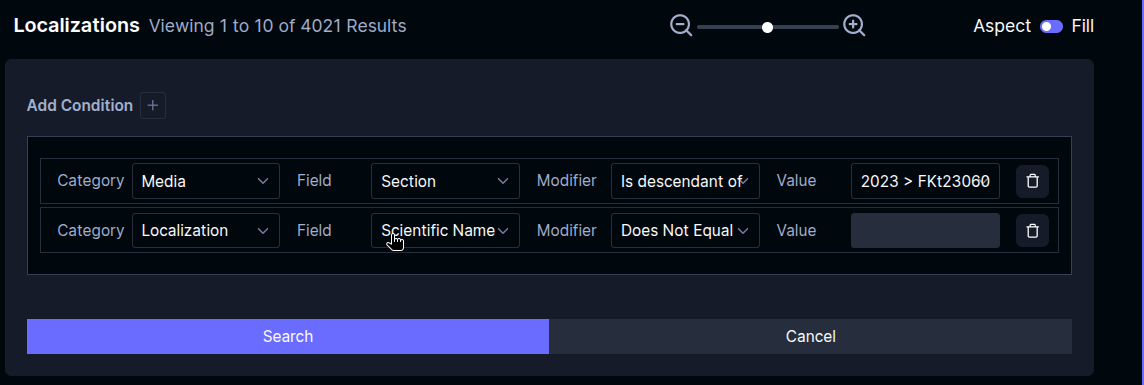
3.) The bulk dataset stager has to assume a Concept from the selected localizations. This information is pulled from Scientific Name. Alt Concept is filled from CommonName. If Scientific Name is not set on the localization, it will not be staged. One can set the scientific name for the localization(s) missing them from within the localization gallery experience.
4.) Once all the localizations are confirmed to have Scientific Name set, it is safe to load the export tool. This can be done from the gallery action menu. 
5.) Follow the dialog steps to choose or create a dataset as the staging destination. Once you click stage, the staging process will run in the background. You may leave the browser or watch the progress.
Exporting a staged dataset
Once a dataset has been staged, via either process, you can view the dataset and export it to Fathomnet or COCO formats via the Dataset Export tool.
Steps:
1.) Navigate to the dataset export tool from the main project page.

2.) Select your dataset, wait for it to load, and choose the download format for your data.
Frequently Asked Questions
What about dots and lines?
In the background process, lines and dots are automatically converted to boxes during the dataset staging process. This is done using the segment anything model.
I already exported a dataset, can I export it again? Can I add more localizations to an existing set?
Yes. Once a dataset is staged, it can be exported any number of times. The media resides on a bucket not requiring authenticated access, so it is suitable for Fathomnet submission or bulk downloads to train models. If you stage to an existing set, the localizations will be added to that set.
I want to export to a different format.
Please contact us and we can add additional formats to the dataset export page.