Using the Interface
The TATOR interface can be quite confusing at first, but once you learn what each button does, you will become comfortable! We’ve broken down each button and what their function is to help you annotate and analyze marine video data. If you have questions or bugs, please consult the FAQ or reach out to us!
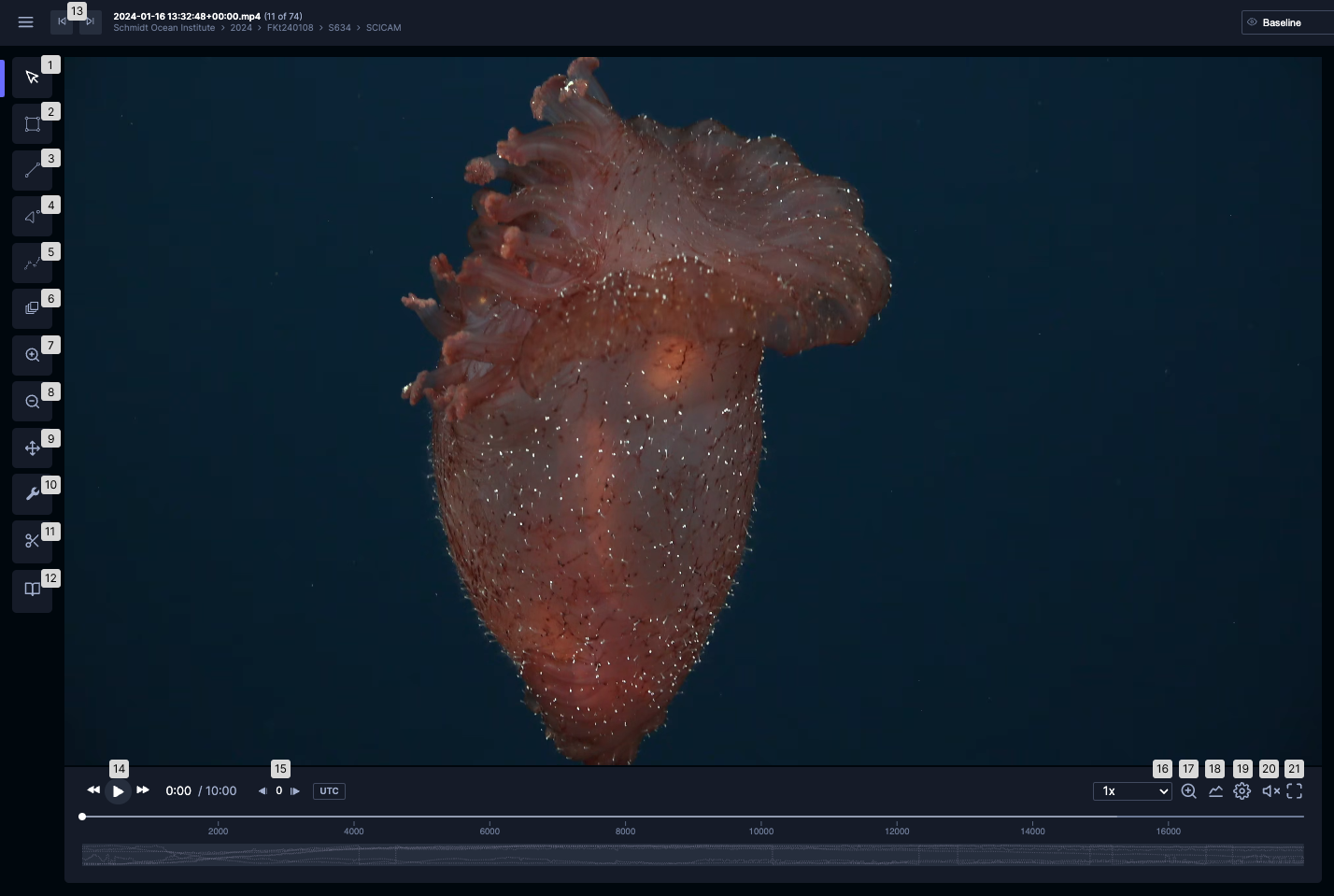
- Cursor that is selected by default. Does not perform any action on the video.
- Create a bounding box localization for a specific frame by clicking and dragging on the video.
- Create a line segment localization for a specific frame by clicking and dragging on the video.
- Create a dot localization by clicking for a specific frame on the video.
- Create a polygon localization for a specific frame by clicking and creating points on the 6. video. The last point must connect to the first point to create the localization.
- Create multiple bounding boxes all linked with the same localization ID, called a “track”. You can create a track across different frames of a video (useful for tracking one common object across frames) as well as multiple localizations on one frame.
- Zoom into the video by clicking and dragging to create a box to zoom into. You can zoom in multiple times.
- Click to zoom back out to the original video after zooming in.
- Click and drag on the screen to move around a zoomed in video.
- Launches different applets/tools, such as auto segment and image scaling. Click the icon again to hide the applets/tools.
- Shows instructions to create a video clip. Click the icon again to hide the instructions.
- Create a taxonomic classification for the selected localization.
- Toggle between the previous and next video in the folder.
- Play, rewind at 1x the set speed, and fast forward 2x the set speed.
- Toggle between the previous and next frame.
- Set the speed at which the video plays.
- Zoom into the video player bar.
- Show the graphs for sensor data and maxN (number of identified objects in frame using AI), if applicable.
- Toggle settings to adjust timeline units, quality, and additional settings.
- Adjust video volume.
- Full screen the current browser page (shortcut for F11).